CleanYourTV UI

Android TV · Google TV · open source

A calm, Apple TV-style home screen for your Android TV.

Built on CleanYourTV, which strips the factory bloat off your TV, with the look of Free My TV. Browse movies and shows with TMDB, see where each one streams, and open it right in the app.

  • One APK for every TV
  • Android 9+
  • MIT
  • No ads, no telemetry
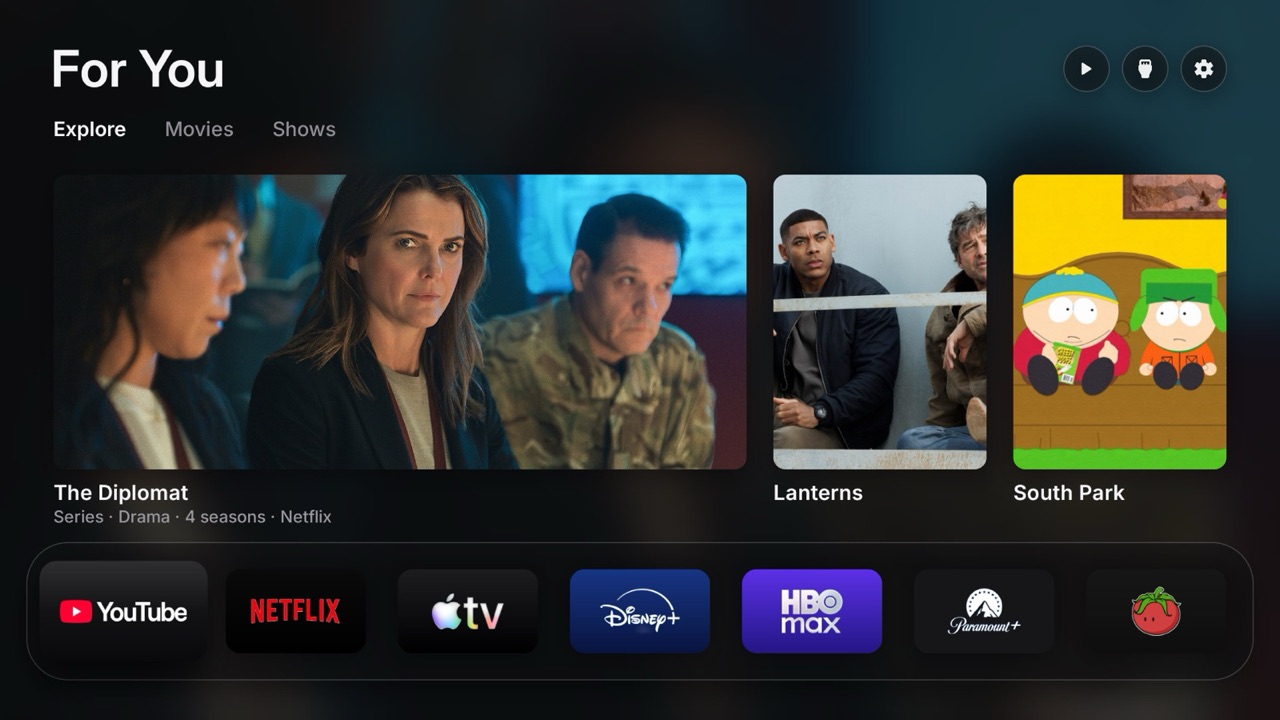
The home screen: the clock and the weather, picks from your streaming apps, and the app shelf

What you get

Your apps, the picks on them, and nothing else.

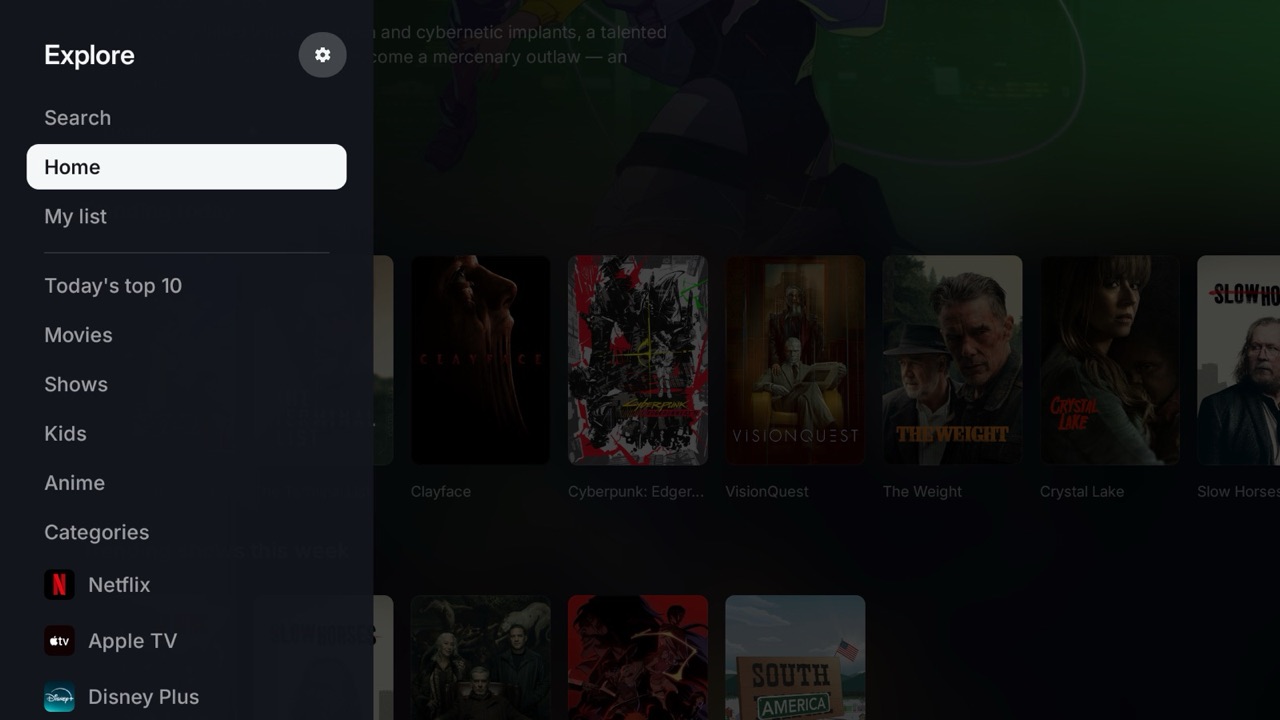
CleanYourTV removes what the factory put on the TV. This fork adds a home screen to it, and Explore, a catalog of movies and shows across the apps you have.

Home screen

  • For You: TMDB picks on your services, with Explore, Movies and Shows tabs.
  • An app shelf with official logos; hold OK on an app to move it or change its tile.
  • Weather for your city, a theme that darkens at sunset, a photo or clock screensaver.
Explore

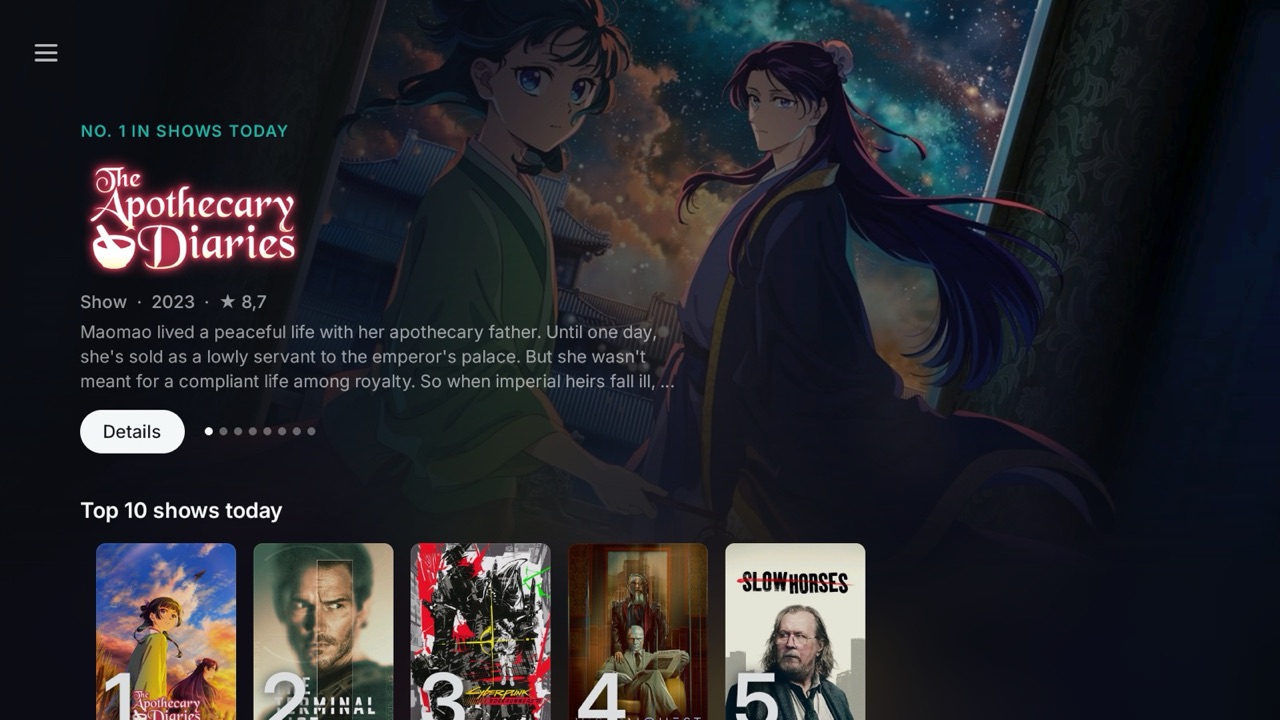
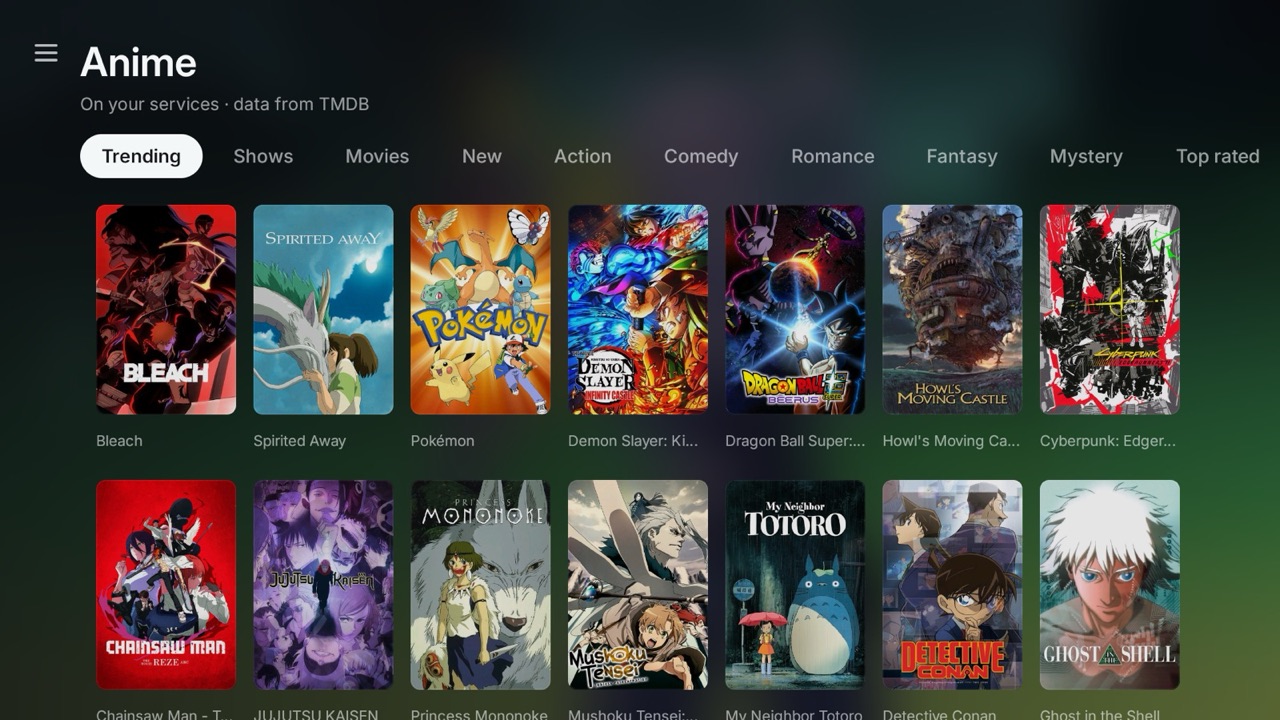
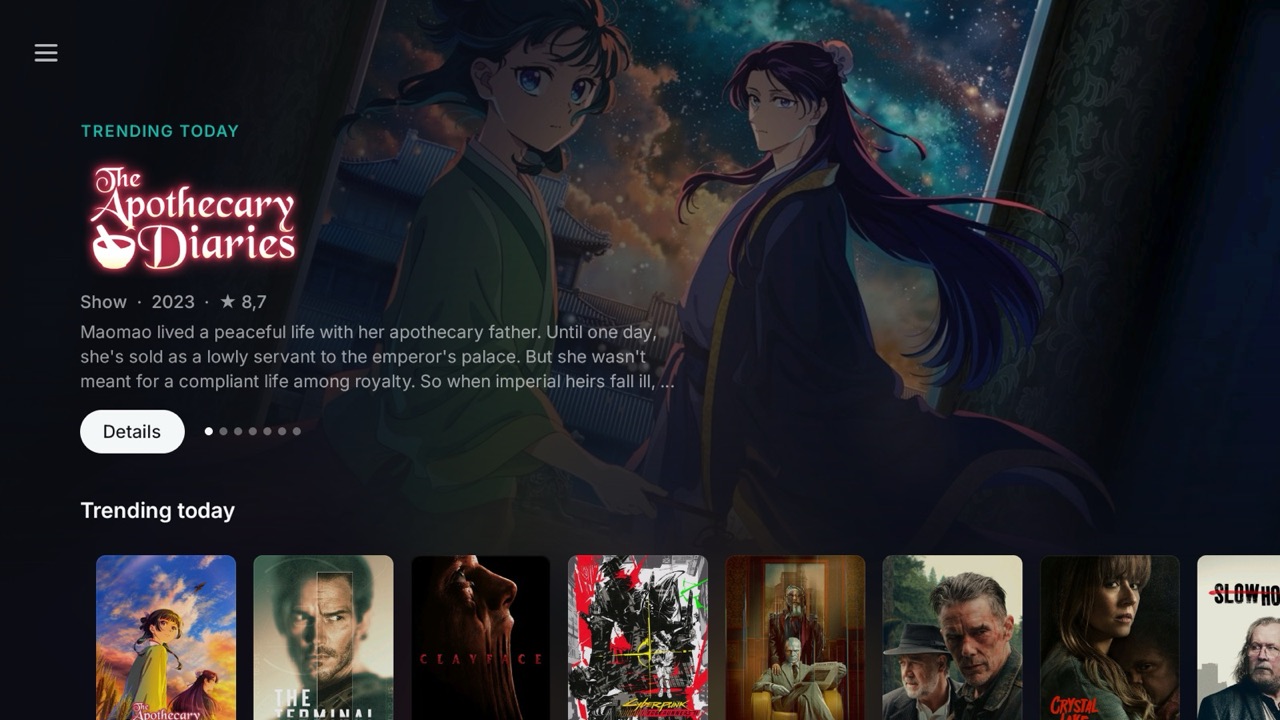
  • Banners, today's top 10, catalogs for Movies, Shows, Kids and Anime.
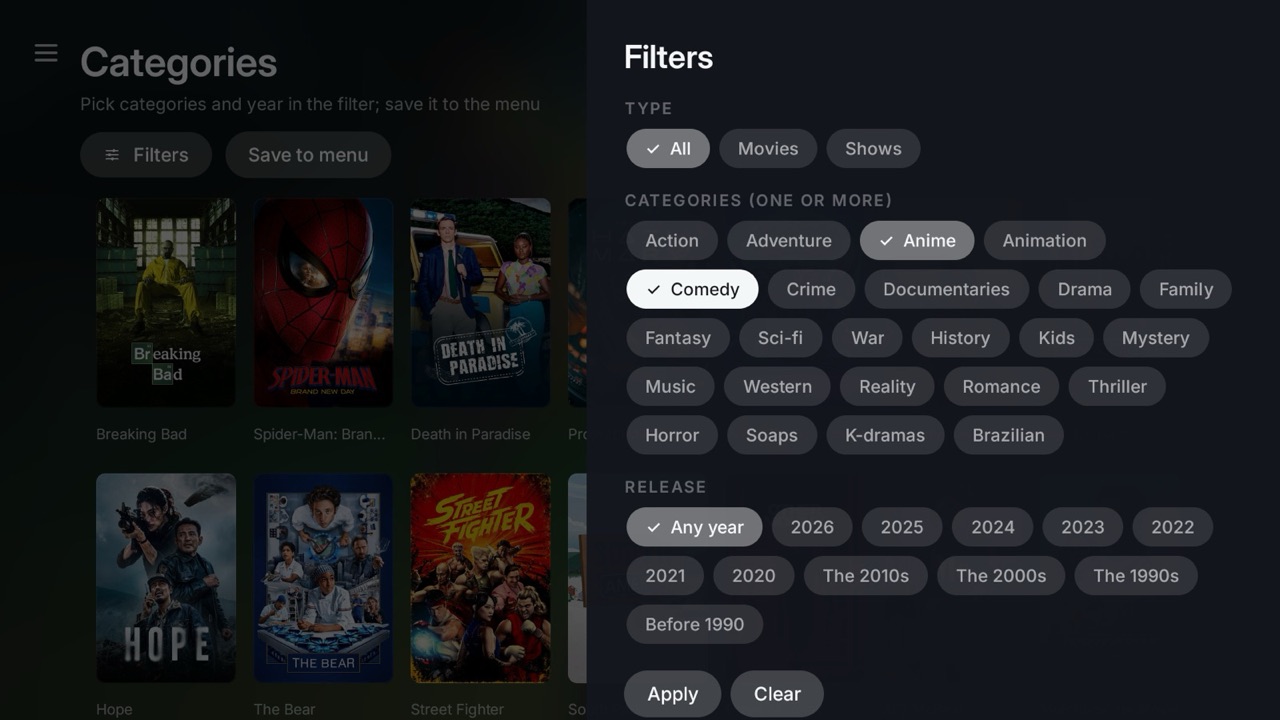
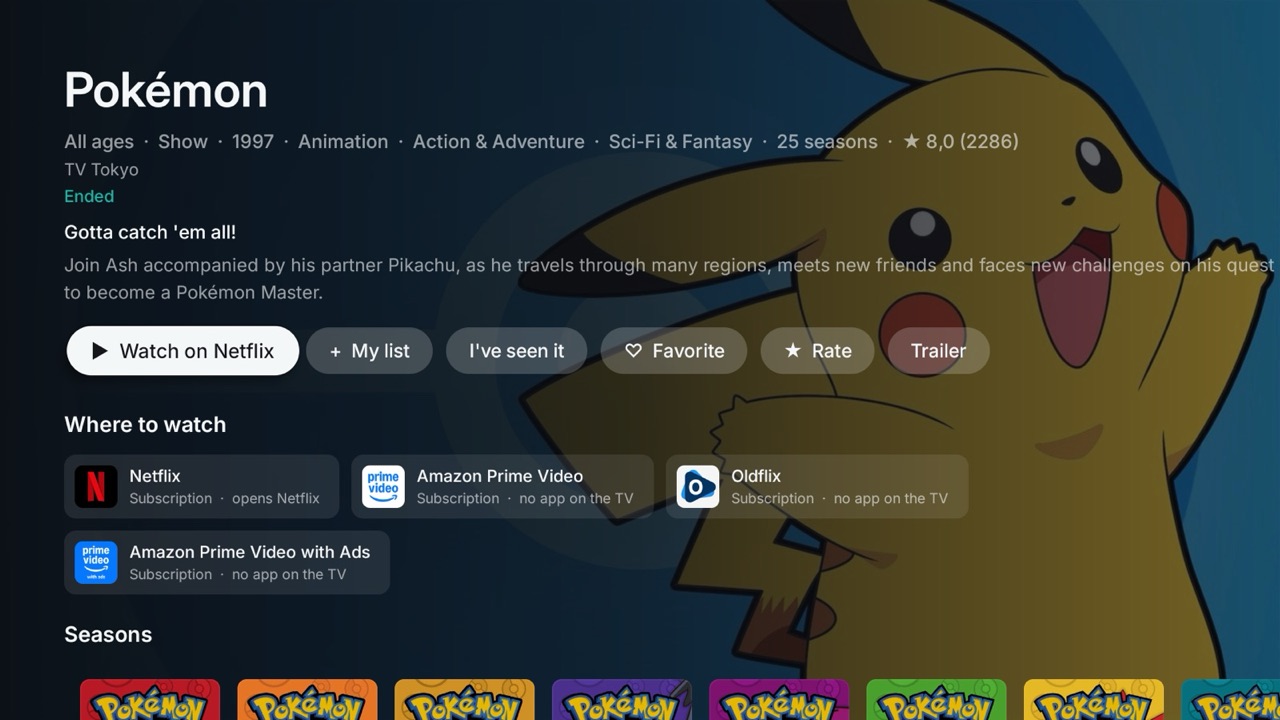
  • Search and categories with one filter; title pages with cast, seasons and trailers.
  • Watch on… opens the title itself in Netflix, Disney+, Prime Video, Max or Apple TV.

Remote and configuration

  • The remote's app buttons open any app, an HDMI input, Explore or your list.
  • One config.json per TV: the TMDB key, city, shelf and buttons, pushed over ADB.
  • No ADB left on afterwards, no network beyond TMDB, Wikidata and the weather.

Install

One APK. Two ways to put it on the TV.

Nothing about your TV is built into the APK. Install it, then hand it this TV's settings in a config.json, or set them on the TV.

Before either: switch on debugging on the TV

Settings → Device Preferences → About → press OK on Build seven times → back → Developer options → USB debugging on (and Network debugging if there is one). Note the TV's IP address under Network. To clean the TV of its bloat too, follow CleanYourTV's Quick start first: the home screen works with or without it.

Simplestadb

From the release APK

No JDK, no Android SDK, no build. You need only Android's platform-tools (adb).

  1. Download CleanYourTV-UI-<version>.apk from the latest release, and check it against its .sha256.

  2. Install it and make it Home. Accept “Allow USB debugging?” on the TV the first time. The TV's own launcher stays installed.

    adb connect 192.168.1.50
    adb install -r CleanYourTV-UI-1.1.0.apk
    adb shell cmd package set-home-activity --user 0 io.cleanyourtv.ui/.HomeActivity
    adb shell input keyevent KEYCODE_HOME
  3. Make this TV's config.json below, and push it:

    adb push config.json /data/local/tmp/cyt-ui-config.json
    adb shell 'content write --uri content://io.cleanyourtv.ui.config/config.json < /data/local/tmp/cyt-ui-config.json && rm /data/local/tmp/cyt-ui-config.json'
    adb shell input keyevent KEYCODE_HOME

    Or skip the file: Settings → Home Settings on the TV, and TMDB account to type the key.

  4. Optional: the screensaver, and the remote's app buttons inside any app. The second line replaces other accessibility services: check settings get secure enabled_accessibility_services first.

    adb shell settings put secure screensaver_components io.cleanyourtv.ui/.Screensaver
    adb shell settings put secure enabled_accessibility_services io.cleanyourtv.ui/.RemoteKeyService
    adb shell settings put secure accessibility_enabled 1

    On Android 11 the screensaver is .ScreensaverAlone.

  5. Switch Network debugging off on the TV when you are done: port 5555 is plaintext.

For tinkerersgit · JDK 17 · Android SDK

From the clone

The scripts add CleanYourTV's safeguards: they check Android first, start the new Home before touching the old one, and roll back if Home does not land.

  1. Clone the repository and set up the tools' Python:

    git clone https://github.com/matheus-caldeira/cleanyourtv-ui.git
    cd cleanyourtv-ui
    python3 -m venv tools/venv
    tools/venv/bin/pip install -r tools/requirements.txt
  2. Save this TV's config.json in the folder, then build and install in one go:

    TV_HOST=192.168.1.50 CONFIG=config.json KEY_SERVICE=1 \
      launcher-ui/build-and-install.sh

    Or install the release APK with the same safeguards and no build: add APK=~/Downloads/CleanYourTV-UI-1.1.0.apk.

  3. Change settings later without reinstalling:

    TV_HOST=192.168.1.50 launcher-ui/config.sh config.json
    TV_HOST=192.168.1.50 launcher-ui/config.sh --theme themes/aurora config.json
    TV_HOST=192.168.1.50 launcher-ui/config.sh --reset
  4. Build the release APK yourself: RELEASE=1 launcher-ui/build.sh. A personal build (no RELEASE) also reads launcher-ui/config.properties as its first values.

Switching between the release APK and your own build? They are signed with different keys: uninstall first with adb uninstall io.cleanyourtv.ui, which also clears the settings made on the TV. To go back to the TV's own home screen: adb shell cmd package set-home-activity --user 0 <its package>/<activity>, or undo everything with CleanYourTV's tools/restore.sh.

config.json

Make this TV's config.json.

Fill in what you want; leave the rest empty and the TV keeps its defaults. Everything stays in your browser: nothing is sent anywhere, except the city search, which asks Open-Meteo.

TMDB
City and weather
Look
Apps
The shelf, in order. Tap to add or remove; one package per line below for any other app.
Remote buttons

Reference

Every config.json key.

Each new file is applied once, the next time Home opens, as if those choices were made on the TV. What is changed on the TV afterwards wins until the next push. A value the app does not accept is skipped, never guessed.

KeyValueNotes

A button's action is a package, input:<TV input id>, live, settings, home, tmdb:explore, tmdb:watchlist, or "" for what the button did before. The full reference is launcher-ui/README.md.